Data is the foundation of every report you create in Zoho Analytics. But before you can start building dashboards and insights, your first step is getting that data into the platform.
Whether your information lives in spreadsheets, databases, cloud drives, or business apps like Zoho CRM or QuickBooks, Zoho Analytics makes it easy to bring everything together in one place.
In this guide, we’ll walk you through the different ways to import your data into Zoho Analytics, step by step, so you can start analyzing with confidence.
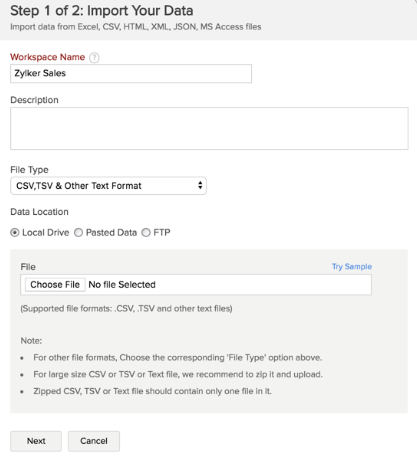
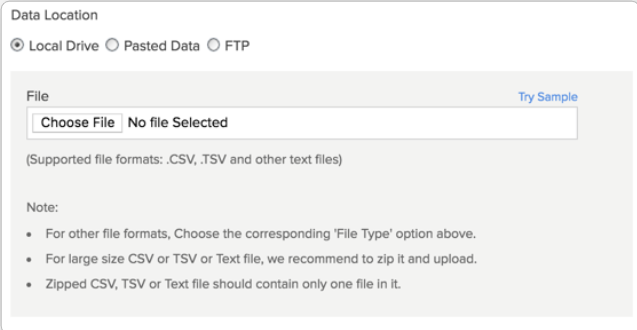
If your data is stored on your computer or shared as a file, you can upload it directly to Zoho Analytics.
Supported formats include CSV, Excel (XLS/XLSX), JSON, HTML, XML, and OData.
Steps:
This is a quick way to import spreadsheets, reports, or exported data from other systems.
If your data updates frequently and is available online, you can connect it using a feed URL.
For larger datasets or automatic refreshes, use Zoho Databridge — a tool that keeps your data synced securely.
Steps:
Zoho Analytics connects easily with popular cloud storage platforms like Zoho WorkDrive, Google Drive, Dropbox, Box, OneDrive, and Amazon S3.
Steps:
This is especially useful for teams that store reports and data files online.
If your business uses databases, either locally hosted or in the cloud, Zoho Analytics can connect to them directly.
Supported databases include MySQL, SQL Server, Oracle, PostgreSQL, Snowflake, Google BigQuery, and many more.
Steps:
Once connected, Zoho Analytics can automatically fetch and refresh your data.
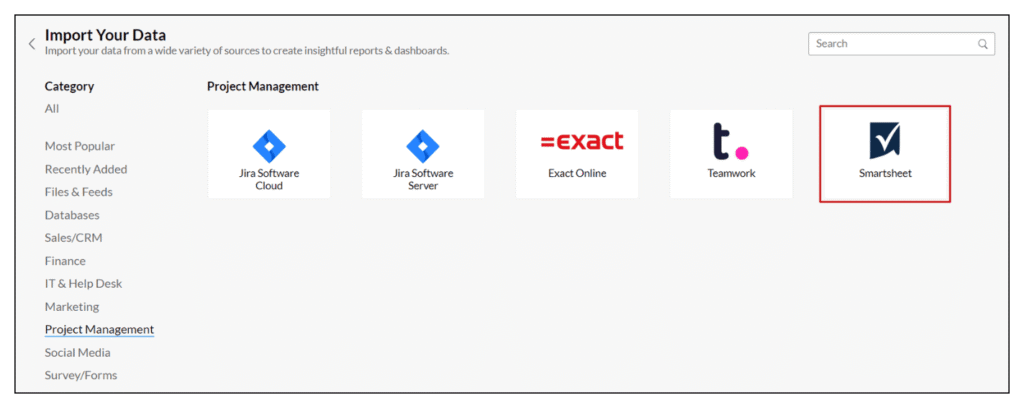
Already using Zoho applications or third-party tools? Zoho Analytics lets you connect to more than 25 popular business apps.
Zoho Apps: Zoho CRM, Books, Desk, Projects, Creator, and more.
Other Apps: Salesforce, HubSpot, QuickBooks, Xero, Google Analytics, Facebook Ads, and others.
Steps:
This helps you view all your business data together without manual uploads.
For developers or tech teams, Zoho Analytics also supports:
These are great options for setting up ongoing, automated data transfers.
After importing, you can manage all your data connections in one place. Zoho Analytics provides a Data Sources page, where you can view, edit, or remove connected sources, making it easier to keep your workspace organized and up to date.
Importing data into Zoho Analytics is straightforward once you know your source. Whether it’s a file, a database, or an app integration, the platform gives you flexible ways to bring everything together.
Once your data is in, you’re ready to move on to the exciting part of building insightful reports and dashboards that help you make better decisions.